
How to Know If Your Mac or iPhone Is Actually Charging (Complete Guide)
Quick read
Everything below concerns the Apple ecosystem only, and every figure traces to Apple's own support documentation or to Elecdov's product listings.
- What this is
- A complete indicator-by-indicator guide to confirming that an iPhone or a Mac laptop is actually charging — and at what speed.
- The core problem
- People read one signal and assume it covers four questions: connected, charging, fast, stuck. Each has its own indicator.
- What you will learn
- The iPhone bolt and Lock Screen battery, Apple's fast-charge time tables for 2026 models, the MagSafe 3 amber/green LED grammar, macOS's "Slow Charger" and "Charging On Hold" messages, the 80 percent behaviors, and a dead-device protocol.
- Product guidance
- Three Elecdov stations — a 25W foldable 3-in-1 with a clock, a 4-in-1 with a wired iPad bay, and a 5W watch-side organizer — compared cell by cell on one table.
- Best for
- Anyone who has ever stared at a silent phone or a dark MacBook wondering whether the cable, the adapter or the device is the problem.
The iPhone, connected: bolt, Lock Screen battery and the two-minute blank
Start with the question people actually ask: how do I know if my iPhone is charging? Apple's iPhone User Guide gives two answers: when the device is taking power, a lightning bolt appears inside the battery icon in the top-right corner, and when the phone is on a charger, a large battery icon appears on the Lock Screen. That is the whole confirmation loop: bolt while you are using the phone, big battery while it sleeps.
The same guide contains two caveats that generate most false alarms. A phone connected to a computer that is turned off can drain instead of charge, and Apple warns against charging from a keyboard's USB port unless it is a high-power port. If the phone is plugged into something and showing nothing, check what it is plugged into before checking the phone.
One more timing quirk: if the battery is extremely low, the display may stay blank for up to 2 minutes before the low-battery image appears, which then needs up to 10 minutes of charge before use. A black screen on a deeply discharged iPhone is a waiting problem, not a hardware verdict.
| Signal | What it confirms |
|---|---|
| Bolt inside the battery icon | The phone is taking power right now, whatever the screen is doing. |
| Large battery icon on the Lock Screen | Charging is underway while the phone sleeps — the overnight check. |
| Blank screen, then low-battery image | Normal for a deeply discharged phone: up to 2 minutes blank, up to 10 minutes before the phone is usable. |
 Status you can read at a glance: a station with its own LED indicator confirms power is flowing before you even wake the phone.
Reading the speed: what "fast" actually looks like in 2026
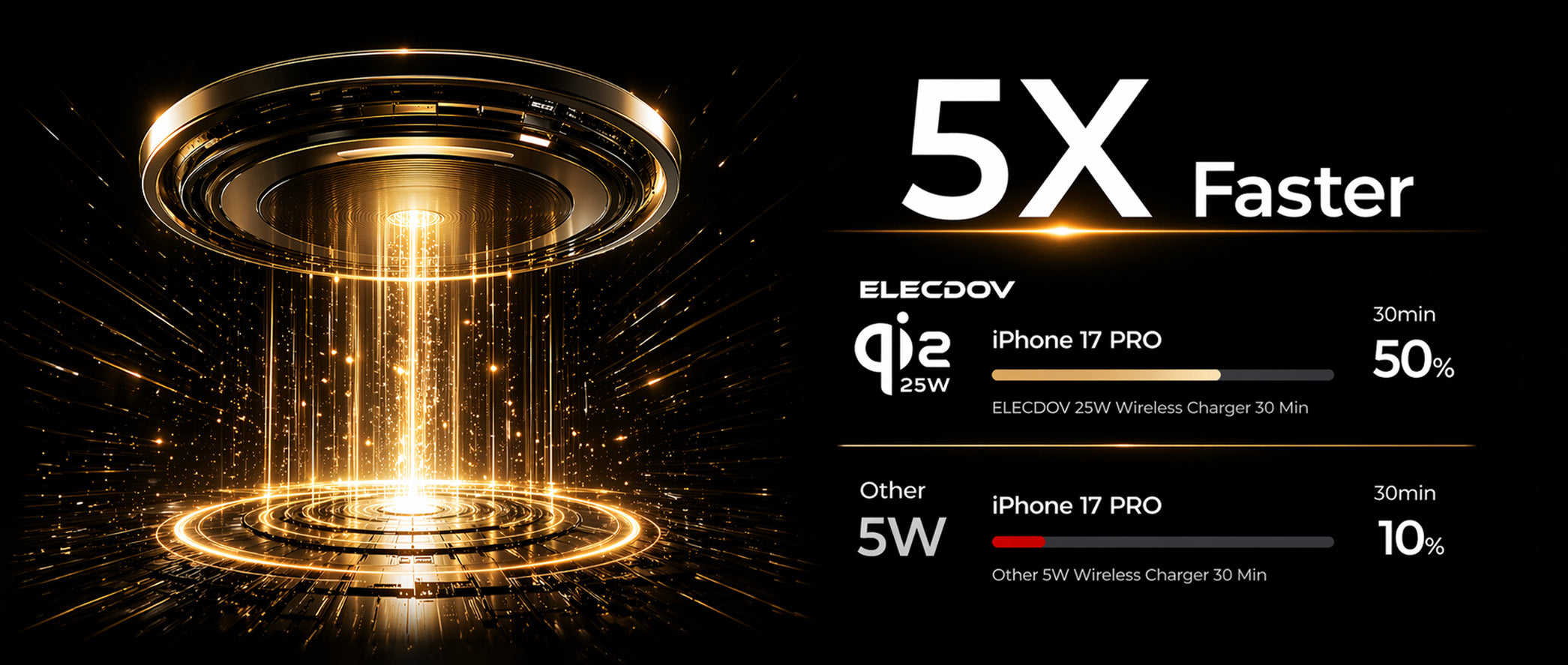
The bolt confirms charging; it says nothing about speed. A fast-capable phone on a slow adapter charges "normally", with no error and no explanation. The honest check is arithmetic, and Apple publishes the numbers in its Fast charge your iPhone documentation.
| iPhone | Path | What Apple publishes |
|---|---|---|
| iPhone 18 Pro / 18 Pro Max | Wired, box cable | Up to 50% in around 15 minutes with the 40W Dynamic Power Adapter (60W max) or a comparable 60W+ AVS, USB-PD 3.2 adapter |
| iPhone 17 / 17 Pro / 17 Pro Max | Wired | Up to 50% in around 20 minutes with a 40W or higher adapter |
| iPhone 17e / iPhone Air | Wired | Up to 50% in around 30 minutes with a 20W or higher adapter |
| iPhone 18 Pro / 18 Pro Max | Wireless | Up to 50% in around 30 minutes with a MagSafe Charger and a 35W or higher adapter |
| iPhone 16 / 17 / Air | Wireless | Fast wireless charging with a MagSafe Charger and a 30W or greater adapter |
| iPhone 15 and earlier | Wireless | Up to 15W with a MagSafe Charger and a 20W or greater adapter |
| iPhone 15 and later | Wired, general | Fast charge with an 18W or greater USB-C adapter supporting USB-PD |
Two rules make the table usable. First, the adapter is the bottleneck: a 25W-class wireless pad on a 20W cube charges like a 15W pad, silently. Second, Apple notes that fast charging might not work in conditions that are too cold or too hot — the phone is protecting itself, not lying. If your time-to-half-charge is far outside the published figure, change the adapter or cable tier first.
| Check | What it tells you |
|---|---|
| Compare against the published table | Time-to-50% far above the model's figure means a tier mismatch somewhere in the chain. |
| Check the environment | Too cold or too hot, fast charging can be disabled — move the setup before blaming hardware. |
Three iPhone messages that look like failure but are not
The first pseudo-failure is the 80 percent stop. Apple's own wording: if the battery gets too warm, software might limit charging above 80 percent; when the temperature drops, the phone charges again. On iPhone 15 and later a user-set charge limit can hold the phone at a chosen level — both look identical from across the room, and neither is a fault. The fix for the thermal version is location: a cooler spot, a hard surface, out of the sun.
The second is Optimized Battery Charging, active since iOS 13 and adjusted in Settings under Battery > Battery Health & Charging. It learns your daily routine and deliberately waits to finish charging past 80 percent until just before you need the phone — an overnight charge that sits at 80 percent at midnight and is full at 6:30 is the feature working, not failing.
The third is the "accessory not supported or not certified" alert. Apple lists the causes: a dirty or damaged charging port, a defective, damaged or non-certified accessory, or a USB charger not designed to charge devices. The steps read as a checklist: connect the accessory directly, clear debris from the port, restart the phone, try a different cable or charger, and keep iOS current. Each of the three messages has a published cause — none of them means the battery is dying.
| What you see | What it means | What Apple advises |
|---|---|---|
| Stops at 80%, warm | Thermal limit protecting the battery | Move phone and charger to a cooler location; charging resumes as temperature drops |
| Stops at 80%, cool | Optimized Battery Charging or a user-set charge limit | Expected behavior; adjust charging settings if you need 100% sooner |
| "Accessory not supported" | Port debris, damaged or uncertified accessory, or unsuitable charger | Connect directly, clear the port, restart, swap cable or charger, update iOS |
The MacBook's clearest signal: the MagSafe 3 LED grammar
Apple's guidance for charging Mac laptops describes the indicator light on the MagSafe connector directly: it glows amber when charging is underway or charging is on hold, and green when the battery is fully charged. Two states, one glance — the one-word answer to "how do you know your Mac is charging" on these machines: amber.
Two edge cases complete the grammar. On first connection, Apple's troubleshooting documentation notes the indicator glows green for about a second — power available, confirmed before the charge state takes over. And if the light flashes amber repeatedly, that is the one signal that points at hardware: Apple's sequence is to disconnect the cable and adapter from wall and Mac, wipe the MagSafe 3 port and connector with a dry cloth, confirm both are dry and free of debris, restart, and reconnect. Repeated flashing after that is a service call.
One architectural fact explains much desk confusion: a Mac charges over only one port at a time, using the source that provides the most power. USB-C on both sides plus MagSafe does not triple the speed — the Mac picks the strongest source and ignores the rest.
| LED state | Meaning | Action |
|---|---|---|
| Amber, steady | Charging underway, or charging on hold | None — this is the "is it charging" yes |
| Green, steady | Battery fully charged | None — the machine is on wall power |
| Green for ~1 second on plug-in | Power available confirmed | None — normal startup behavior |
| Amber, flashing repeatedly | Possible hardware issue | Clean port and connector with a dry cloth, restart, reconnect; if it persists, service |
 The Mac keeps its own cable; the desk station covers everything else — one socket, every device reporting its own status.
Charging over USB-C: what the battery menu says and when it warns you
Where there is no MagSafe 3, the report is software instead of an LED. The battery status menu in the menu bar is the primary readout, and Apple's documentation names the exact messages it can show. "Slow Charger" appears in the battery status menu and above the Battery Level graph in Battery settings — on macOS Tahoe 26.4 or later — when the connected charging solution delivers less power than the Mac expects. The cure is wattage: use a charging solution that meets the model's recommended minimum.
Two more menu messages describe deliberate pauses rather than faults. "Charging On Hold" appears when Optimised Battery Charging is managing the battery; if 100 percent is needed sooner, the menu offers "Charge to Full Now". A "Charged to [%] Limit" message appears when the Charge Limit feature is holding the battery at a chosen ceiling, with the same escape hatch in the menu — macOS tells you what it is doing and gives you an override, before you need to suspect the hardware.
USB-C charging has its own quirk: any USB-C port can take power, but only one source wins. A USB-C or Thunderbolt display that provides power can charge the Mac on its own — which is why some desks have no visible charger and still report "charging".
| Menu message | What it means | Your override |
|---|---|---|
| "Slow Charger" | Charging solution delivers less wattage than the model expects | Use an adapter and cable rated at or above the model's minimum wattage |
| "Charging On Hold" | Optimised Battery Charging is pacing the charge | Choose "Charge to Full Now" in the menu |
| "Charged to [%] Limit" | Charge Limit is holding the ceiling you set | Choose "Charge to Full Now" when the limit is reached |
| Bolt / charging indicator, menu bar | Power is flowing from the winning source | None |
 On a working desk, the Mac reports its own status in the menu bar — the station's job is to keep everything else topped up without stealing wattage.
The dead-device protocol: a phone that shows nothing at all
The hardest case is the phone that shows no indicator whatsoever. Apple's troubleshooting flow is a sequence, and its order matters. Connect the device to power, then work through the steps and retry after each: restart the iPhone, check the cable and adapter for damage such as breakage or bent prongs and stop using damaged accessories, confirm firm connections at the wall, remove any debris from the charging port, and let the device charge for half an hour. If it is still unresponsive, force-restart it — volume up, then volume down, then hold the side button until the Apple logo appears — and charge for another half hour. Only then does Apple's own flow point at service.
For a phone that will not turn on at all, the guidance in Restart an unresponsive iPhone adds a clock: charge it for one hour and try again; if it shows the low-charge battery image, check the hardware and charge it for 30 minutes or until it starts. The protocol buys patience before it buys parts.
Wireless belongs in this protocol as a diagnostic, not just a convenience. If the phone charges on a pad but not by cable, the port is implicated; if it charges by cable but not on a pad, the pad or its placement is. One of each in the house turns "my phone will not charge" from a guess into a two-test diagnosis.
| Step | Detail |
|---|---|
| 1. Charge half an hour | Wall socket, firm connections, port cleared of debris; damaged cables retired |
| 2. Force-restart | Volume up, volume down, hold side button until the Apple logo |
| 3. Charge again | Another half hour; a fully dead phone may need up to one hour, or 30 minutes once the low-battery image shows |
| 4. Cross-test wireless | Pad works, cable fails: suspect the port. Cable works, pad fails: suspect pad or placement |
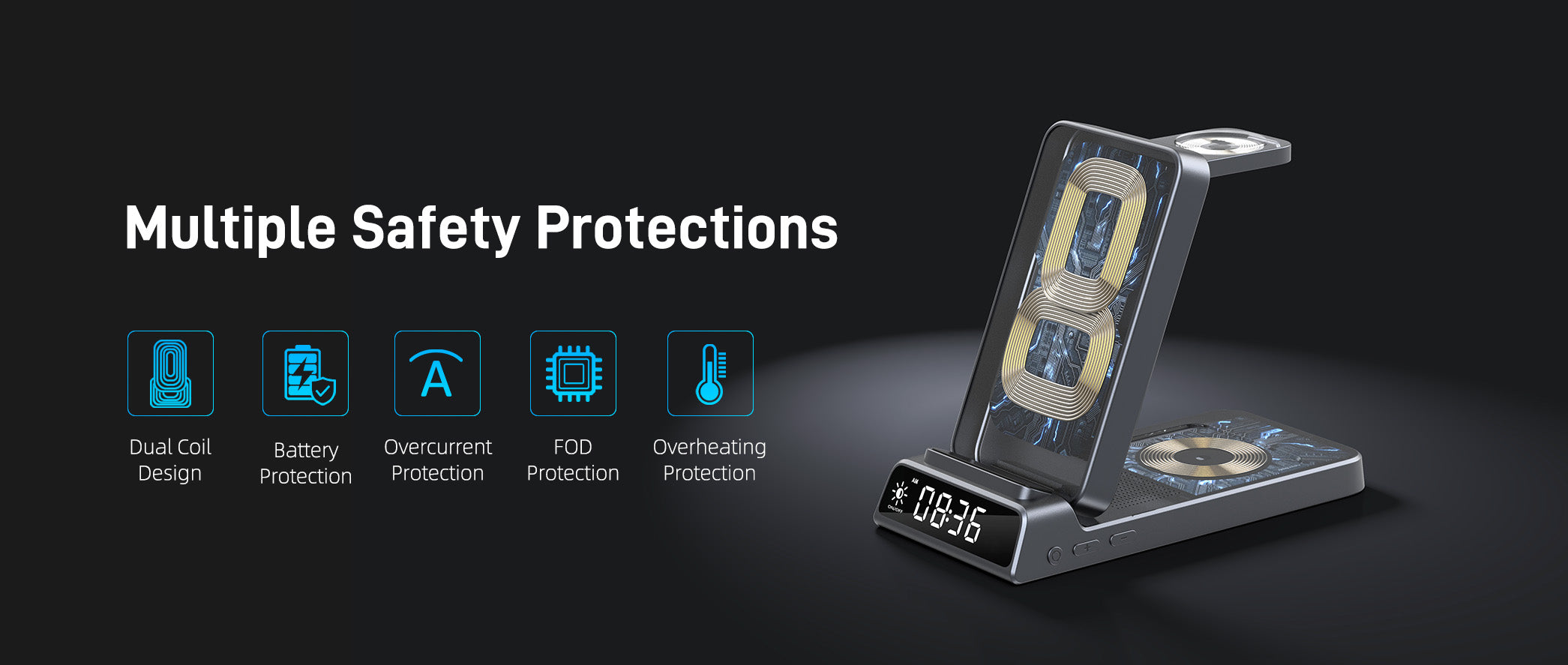
 Protections first: a station with overcharge, overheat and foreign-object protection fails safe, which is what a diagnostic tool should do.
Three Elecdov stations that put the status where you can see it
Every pick below is an Elecdov station for the Apple ecosystem, quoted strictly from its published listing: the bedside all-rounder with a clock, the four-bay desk station, and the watch-side organizer.

Elecdov CE19A 3-in-1 25W Magnetic Wireless Charging Station for iPhone, Apple Watch & AirPods
SKU: CE19A · Built-in digital clock · Plug included
- 3-in-1 magnetic wireless charging — simultaneous charging for iPhone, Apple Watch and AirPods.
- Built-in digital clock display with adjustable brightness that will not disturb your sleep.
- Foldable design for travel and office, with overcharge and overvoltage protection.
- Published phone output runs 5W / 7.5W / 10W / 15W / 25W (max) — the full fast-charge range on one pad.

Elecdov C12N 4-in-1 Magnetic Charging Station for Apple — Includes Charger Plug
SKU: C12N · 0–90° tablet stand · USB-C output 18W (max)
- 4-in-1 wireless charging — simultaneous charging for iPhone, Apple Watch, iPad (wired) and AirPods.
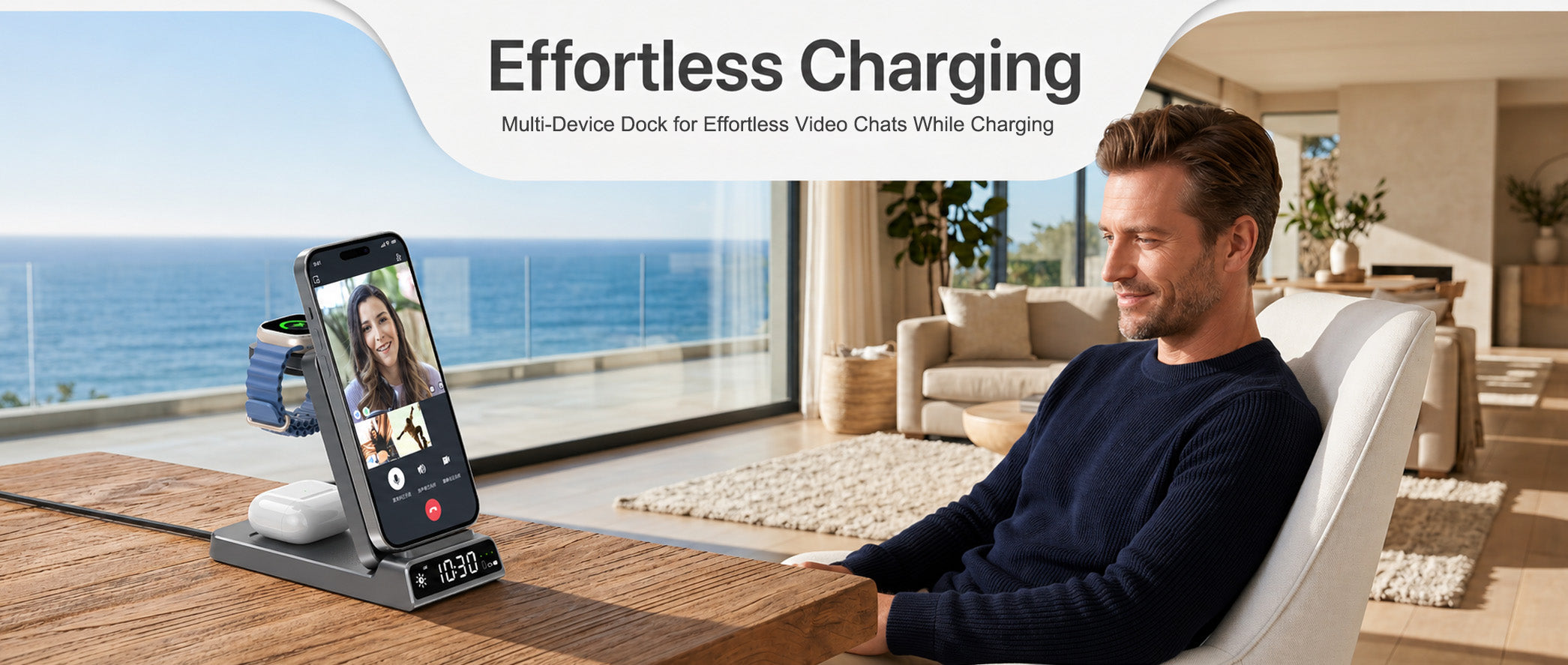
- Built-in adjustable tablet stand, 0–90° range, for a video-call angle on the desk.
- USB-C output up to 18W (max) for a fourth device by cable — matching Apple's 18W+ wired fast-charge class.
- Foldable design for office use, with full charging protection.

Elecdov WC01A 2-in-1 Magnetic Wireless Charging Station for Apple Watch
SKU: WC01A · Doubles as a jewelry organizer · 5.11 oz
- 2-in-1 magnetic wireless charging for Apple Watch with a built-in magnetic dock.
- Doubles as a jewelry organizer for rings and earrings.
- Smart chip prevents overheating, with full charging protection.
- Verified on the listing against Apple Watch Series 12 and Apple Watch Ultra 4.
Side by side: what actually differs
For a charging-status setup, four rows decide it: whether the phone pad can keep up with the phone's ceiling, whether a clock replaces the alarm, whether a fourth device has a home, and the footprint. Everything below is published specification.
| CE19A Pick 01 |
C12N Pick 02 |
WC01A Pick 03 |
|
|---|---|---|---|
| Charging bays | 3 (phone + watch + earbuds) | 4 (phone + watch + earbuds + iPad, wired) | 2 (watch dock + magnetic dock) |
| Phone pad output | 25W max (5/7.5/10/15/25W) | 15W max | Not stated on the listing (published output is 5W max) |
| Watch dock | 2.5W / 5W (max) | 2.5W (max) | 5W (max) |
| Earbuds case | 5W (max) | 5W (max) | Not stated on the listing |
| Extra outputs | Not stated on the listing | USB-C output 18W (max) | Not stated on the listing |
| Input | 5V-3A / 9V-3A / 12V-3A / 15V-3A | 12V/3.7A (max) | 5V 2A 10W |
| Wall plug included | Yes (per listing title) | Yes (per listing title) | Not stated on the listing |
| Clock display | Built-in digital clock, adjustable brightness | Not stated on the listing | Not stated on the listing |
| Stand / mount | Foldable magnetic phone mount, foldable body | Adjustable tablet stand, 0–90° | Watch stand; doubles as a jewelry organizer |
| Dimensions & weight | 5.9 × 2.76 × 1.18 in · 15.16 oz | 10.43 × 6.34 × 2.76 in · 20.39 oz | 3.78 × 3.34 × 3.64 in · 5.11 oz |
| Best spot in the room | Bedside table — the clock earns it | Work desk, with the iPad and the video call | Dresser or bedside tray |
CE19A — the default nightstand station. You get the fastest published phone output of the three (25W max, spanning every Apple wireless tier), a clock with adjustable brightness that removes the alarm clock from the table, and a plug in the box. You give up the fourth bay and the tablet stand, and a 15W-class phone gets no benefit from the extra headroom.
C12N — the station for a four-device desk. You get a wired iPad bay, an 18W max USB-C output that matches Apple's published 18W+ wired fast-charge class, and the 0–90° stand. You give up phone-pad speed (15W max published) and about five ounces of footprint weight — it is the desk citizen, not the bedside one.
WC01A — the watch-first completion. You get a dedicated 5W max watch dock, an organizer tray that earns a permanent spot on a dresser, and 5.11 ounces. You give up a published fast phone pad entirely — its only output figure is 5W max — so it complements a main station rather than replacing one.
Still unsure? Count the devices that actually need a home at night. Phone + watch + earbuds: the CE19A covers all three on one socket and shows the time doing it. Add an iPad or a fourth wired device: the C12N is the only pick with that bay. Already own a phone pad you like and just need the watch off the floor: the WC01A. Then read each listing's published compatibility list against your exact devices before ordering — the lists differ, and they are published for a reason.
The takeaway: read the indicator that answers your question
Charging confusion is almost never a mystery; it is a mismatch between the question and the indicator. Is it connected? Look for the bolt, or the amber LED. Is it fast? Compare your time-to-half-charge against Apple's published table. Is it stuck? That is a thermal limit, a charge limit or Optimized Battery Charging, each with its own override. Is it dead? Follow the protocol: half an hour, force-restart, another half hour, cross-test.
Every one of those checks costs nothing, and together they end the most expensive habit in charging: replacing hardware that was never broken.
- Bolt in the status bar or large Lock Screen battery — the iPhone's "yes"
- Amber LED or battery-menu status — the Mac's "yes"
- Published time-to-50% tables — the only honest speed test
- 80 percent stops, charge limits and "Slow Charger" — behavior, not failure
Frequently asked questions
How can I tell if my iPhone is charging right now?
Look for the lightning bolt inside the battery icon in the status bar, or a large battery icon on the Lock Screen. If nothing appears, charge for half an hour before diagnosing further, because an extremely low battery can leave the display blank for up to 2 minutes.
How do I know if my iPhone is fast charging?
Apple does not display a fast-charge badge, so judge by published time-to-50-percent figures: an iPhone 18 Pro reaches 50 percent in around 15 minutes wired with the 40W Dynamic Power Adapter, and in around 30 minutes wirelessly with a MagSafe Charger and a 35W or higher adapter. If your phone is far slower than the published figure for its model, the adapter or cable tier is the usual cause.
What does the amber and green light on my MacBook's MagSafe connector mean?
On a MagSafe 3 connector, the LED glows amber when charging is underway or charging is on hold, and green when the battery is fully charged. If the indicator flashes amber repeatedly, Apple's guidance is to disconnect the cable and adapter, wipe the MagSafe 3 port and connector with a dry cloth, restart the Mac and try again.
Can I fast charge my Mac wirelessly?
No. Apple documents Mac laptop charging through a MagSafe 3 port, a USB-C port, or a USB-C or Thunderbolt display that provides power. A wireless charging pad cannot charge a MacBook, so a desk wireless charger covers the phone, watch and earbuds while the Mac keeps its own cable.
My iPhone stops charging at 80 percent. Is it broken?
Usually not. If the battery gets too warm, software might limit charging above 80 percent to extend battery life, and the iPhone charges again when the temperature drops. Optimized Battery Charging also deliberately waits to finish charging past 80 percent until you need the phone. Move the phone and charger to a cooler location, or adjust charging settings, if you need the full charge sooner.
How long should I charge a dead iPhone before it turns on?
First force-restart it: press and quickly release volume up, then volume down, then hold the side button until the Apple logo appears. If the phone still does not turn on, Apple's guidance is to charge it for one hour and try again; if it shows the low-charge battery image, charge it for 30 minutes or until it starts.
The best match for a check-it-at-a-glance nightstand: the CE19A puts a 25W-max phone pad, a watch dock and an earbuds surface behind a clock with adjustable brightness, so the time and every charging status read from the same glance.
Related reading
- Revealing the True Charging Limits of Apple Devices: Authoritative Guide to Scientifically Selecting Wireless Chargers The ceiling-by-device companion to Section 02's speed tables — what each Apple device can actually take.
- Charging to 80% or 100% Is More Damaging to the Battery? The Ultimate Answer from Authoritative Testing and Official Recommendations The battery-health background to the 80 percent behaviors in Section 03.
- 20W vs 45W iPhone Chargers: In-depth Comparison of Wireless Charging Compatibility and Wired Charging Performance Puts wattage classes side by side — the buying-level version of Section 02's adapter math.
- In-depth Analysis of Apple Wireless Charging Technology: The Evolution from Qi Standard to MagSafe How the magnetic ecosystem Apple's indicators sit on top of came to be.
- MagSafe 2026: Apple Ecosystem Evolution and Industry Impact of Wireless Charging Technology The ecosystem-level view of where MagSafe charging — and its indicators — is heading next.
Put the status where you can see it
Bays, phone-pad power, plug, clock, stand and footprint — the same comparison, with the product pages one click away.
See the CE19A stationSources: Apple Support, Fast charge your iPhone; Apple Support, If your iPhone or iPod touch won't charge; Apple Support, Restart an unresponsive iPhone; Apple Support, Charge your Mac laptop computer; Apple Support, Mac laptops: Power and startup issues troubleshooting (MagSafe 3 indicator behavior); Apple, iPhone User Guide — Charge the iPhone battery; Elecdov listings for CE19A, C12N and WC01A. Specifications are quoted as published and may change; confirm on the product page before purchase.


